
Screen Overview #
Log in to the app to use the service. You can log in by entering your Email ID and Password.
If you do not have an account, you can proceed with Sign up.
If you set Auto Login and log in, the app maintains the login status.
Feature Details #
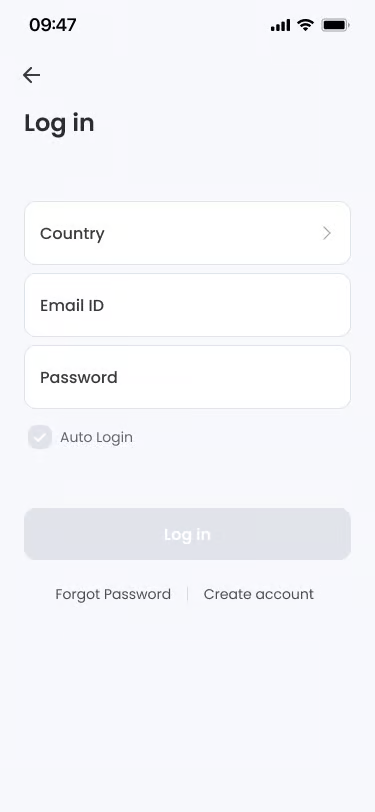

- Select Country
Location: Top of screen
Functionality: Select the user’s country. When a country is selected, the country code for that country is automatically set.
Notes: When location permission is allowed, country information based on location is automatically set. You can tap the area to select another country. - Enter Email ID
Location: Below Select Country
Functionality: Enter the email address to use for login.
Notes: You must enter a valid email format. - Enter Password
Location: Below Enter Email ID
Functionality: Enter your account password. You can show or hide the password by pressing the eye icon on the right.
Notes: Displayed as dots (•) when entered. - Auto Login
Location: Below Enter Password
Functionality: If you check the checkbox, you will remain logged in even if you close and restart the app.
Notes: If you do not use the app for 21 days, Auto Login is turned OFF and you are logged out. - Log in button
Location: Center of screen
Functionality: Attempts to log in with the entered information.
Notes: Activated when email and password are entered. - Forgot Password / Create account
Location: Bottom of screen
Functionality: Moves to the find password screen when you forgot your password, or moves to the sign up screen when you do not have an account.
Notes: Always activated.
Specific Scenarios #
- Login information mismatch
Displayed when the entered email or password is incorrect.
→ “Check your login information.” modal is displayed.
→ Pressing the Confirm button closes the modal and allows you to enter again. - Unregistered account
Displayed when there is no account registered with the entered email information.
→ “There is no registered account.” modal is displayed.
→ You can press “Close” to enter again, or press the “Sign up” button to move directly to the sign up screen. - Account pending withdrawal
Displayed when attempting to log in with an account waiting for withdrawal processing after requesting membership withdrawal.
→ “Withdrawal pending notification.” modal is displayed.
→ It informs that login is impossible because withdrawal processing is in progress.
→ If you want to cancel withdrawal, you must inquire through the Customer customer centre link.
FAQ #
- Q. I forgot my password. What should I do?
A. You can reset your password after email verification by clicking the “Forgot password” link at the bottom of the login screen. - Q. Login fails repeatedly.
A. Please check if your email address and password are correct. You must enter carefully as it is case-sensitive. If “Withdrawal pending notification” appears, it is an account in the process of withdrawal, so you must contact the customer center. - Q. Can I change my ID (email)?
A. No, the email address registered at the time of sign-up is used as a unique ID and cannot be changed.
