
Screen Overview #
Set LED brightness according to the charger installation environment.
LED brightness can also be changed later in the User App.
Feature Details #
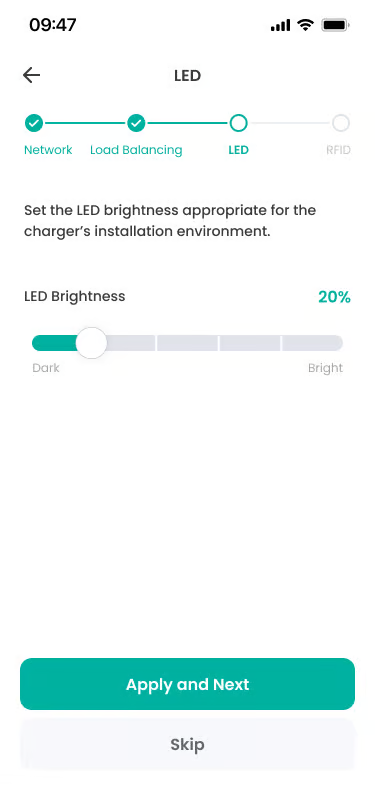
- Navigation Area
Location: Top of screen
Functionality: Displays installation progress steps. Consists of 4 steps: Network, Load Balancing, LED, RFID, and currently LED step is active.
Notes: Not touchable. Current step is active, and previous steps are displayed as check marks. - LED Brightness Slider
Location: Center of screen
Functionality: Adjusts LED brightness to fit charger installation environment. Adjustable by dragging slider left or right.
Notes: Default is 60%. Charger LED brightness changes in real-time. - Apply and Next Button
Location: Bottom of screen
Functionality: Applies LED brightness setting to the charger and moves to the next step (RFID setting).
Notes: Saves settings to charger when pressed. - Skip Button
Location: Bottom of screen
Functionality: Skips LED brightness setting and moves to the next step maintaining default value (60%).
Notes: Always available.
Additional Info #
- LED Brightness Adjustment: Installer sets initial LED brightness according to installation environment (indoor/outdoor, residential/commercial area).
- Real-time Preview: Adjusting the slider immediately changes charger LED to corresponding brightness so you can check directly in the installation environment.
Technical Details #
- Default Value: Charger initial LED brightness is set to 60%, and this value is maintained if installer does not change it.
- LED Status Indication: LED color changes according to charging status (Standby/Charging/Complete/Error), only brightness is adjusted.
- User App Changeable: After installation is complete, the user can change LED brightness at any time in the User App.
FAQ #
- Q. Can LED settings be changed later?
A. Yes, the user can change LED brightness at any time in the charger settings menu of the User App. - Q. What happens if I skip LED settings?
A. If you press “Skip” button, LED brightness is maintained at default value (60%). Since the user can change it later in User App, you can skip if you want to shorten installation time.
