
Screen Overview #
- Connect and manage external energy monitoring devices (such as CT clamps or smart meters) to monitor home energy usage and enable Auto Solar and Load Balancing features.
- You can select an installed device or add a new one to link household energy consumption data to the charger.
- Available devices for selection or addition may vary by country.
Feature Details #
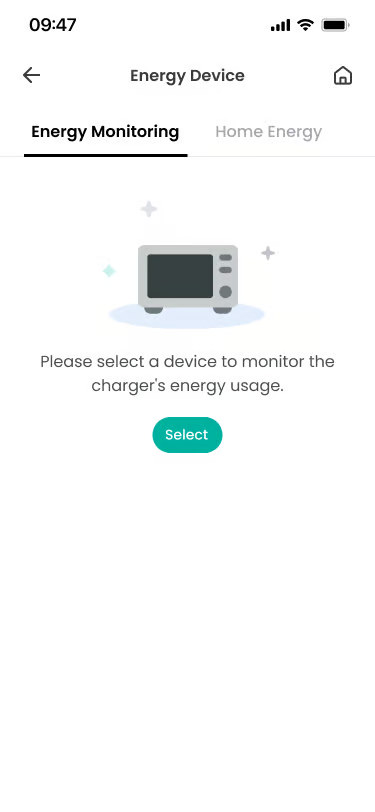
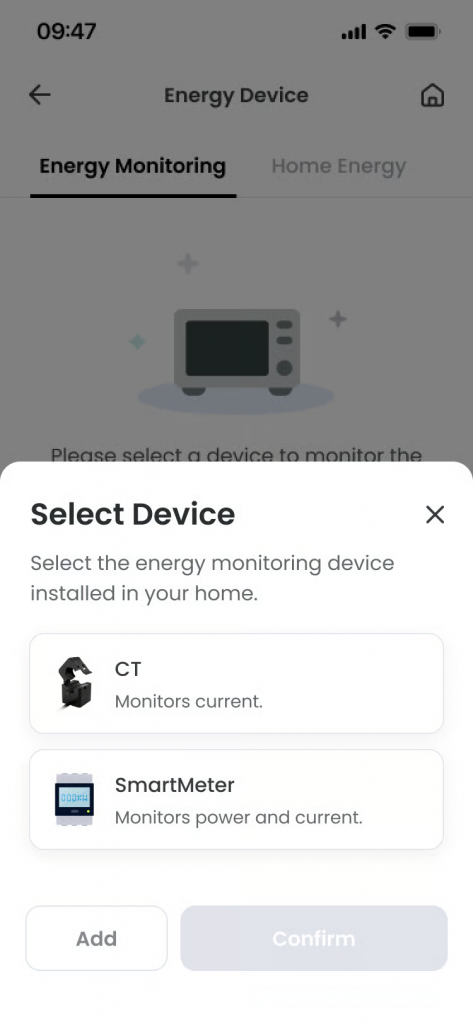
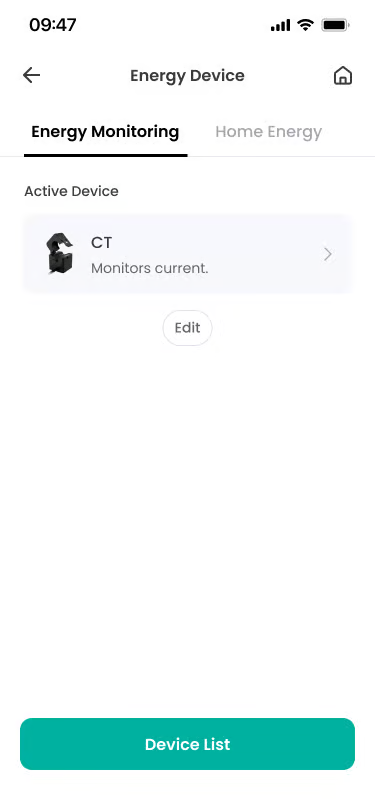
- Energy Monitoring Tab
– Location: Energy Device screen
– Function: Allows you to view the status of the currently active energy monitoring device and navigate to the device selection or add device screen.
– Notes: If an active device is present, it is displayed as the Active Device. - Energy Monitoring Device List
– Location: Energy Monitoring tab
– Function: Displays the list of registered energy monitoring devices.
– Notes: Tapping a device card opens detailed information (e.g. connection status, registration date). - Energy Monitoring Device Section
– Location: Displayed when the Status toggle is enabled
– Function: Allows selection of a device that monitors total household energy consumption.
– Notes: Available monitoring devices may vary by country. - Add Device
– Location: Bottom of the Select Device screen
– Function: Adds a new energy monitoring device to the charger.
– Notes: Only one device can be set as Active at a time. Available device types may vary depending on country and service environment. - Select Device
– Location: Select Device screen
– Function: Allows selection of the energy monitoring device to use. You can choose a default accessory (such as a CT clamp) or add a compatible device.
– Notes: Only devices supported by Humax Charge can be added. - Device Details
– Location: Displayed when a registered device is selected
– Function: Allows you to view detailed information (e.g. name, serial number, connection status) and delete the device if required.
– Notes: For default accessories, the device details screen may not be available.
Additional Info #
>> Adding an Energy Monitoring Device (e.g. Netherlands – Sparky P1 Dongle)
- Netherlands: Procedure for registering a Sparky P1 Dongle
- Step 1: Tap the Add button on the Energy Monitoring screen to navigate to the Select Device screen.
- Step 2: On the Select Device screen, tap the Add button to enter the device registration screen.
- Step 3: Select the device to be added from the list (e.g. Sparky).
- Step 4: Register the device by scanning its QR code or entering the serial number manually.
- Notes: The Sparky P1 dongle must first be registered in the Chargee app before it can be linked to the Humax Charge app.
- France: Procedure for registering a Linky Smart Meter (TIC wired) or LiXee dongle
- For detailed information, please refer to the Load Balancing setup guide.
- Step 1: Tap the Add button on the Energy Monitoring screen. The system will automatically check for any wired monitoring device connected to the charger.
- Step 2: If a wired monitoring device is detected:
- The Linky Smart Meter ID and Mode information will be displayed along with the connection type. If the displayed information matches the installed meter, you can complete the registration.
- Step 3: If no wired monitoring device is detected:
- A list of available devices (LiXee Dongle, CT) will be provided. Selecting CT will complete the registration immediately.
- Step 4: If LiXee Dongle is selected:
- Pairing between the charger and the device will proceed automatically.
- Once pairing is complete, the Linky Smart Meter ID and Mode information will be displayed along with the connection type.
- If the displayed information matches the installed meter, you can complete the registration.
Specific Scenarios #
- When No Energy Monitoring Device is Selected
- This applies when no energy monitoring device is selected or when a previously registered device has been removed.
- Load Balancing and Auto Solar features are turned off, and cannot be used until an energy monitoring device is registered.
- If charging is in progress, charging will be stopped for safety reasons.
- This applies when no energy monitoring device is selected or when a previously registered device has been removed.
Technical Details #
- Energy Monitoring Devices: These devices transmit real-time power or current data to the charger.
- Data Usage: The transmitted data is used for load balancing calculations.
- Connectivity Note: Data transmission may be temporarily interrupted depending on network or device connection status.
FAQ #
- Q. Is it mandatory to register an energy monitoring device?
- No, it is not mandatory.
- However, without an energy monitoring device, features such as Load Balancing and Auto Solar cannot be used.
- Q. Can multiple energy monitoring devices be used at the same time?
- No, only one device can be set as the Active Device at a time.
- When a different device is selected, the existing device is automatically deactivated.
- Q. What is an Active Device?
- It refers to the device currently providing actual energy data to the charger.
- Only the data from the Active Device is used for charging control.
- Q. Are there cases where a device does not appear in the list when adding it?
- The list of available energy monitoring devices may vary depending on the country and service environment. Only devices supported in the current service region can be added.
- The list of available energy monitoring devices may vary depending on the country and service environment. Only devices supported in the current service region can be added.
- Q. Can default accessories (such as CT clamps) be deleted?
- For default accessories, a device details screen or delete function may not be available. In this case, you can switch by selecting another device as the Active Device.
