
Screen Overview #
You can view and manage past charging history in detail.
You can check charging statistics graphs by period, filter charging lists, or export data via email.
Feature Details #
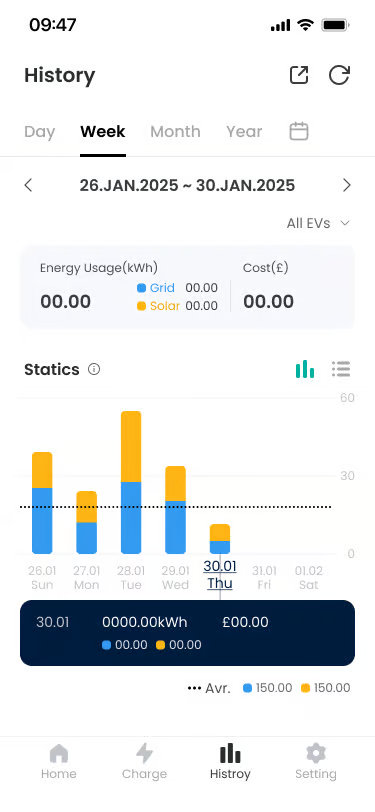
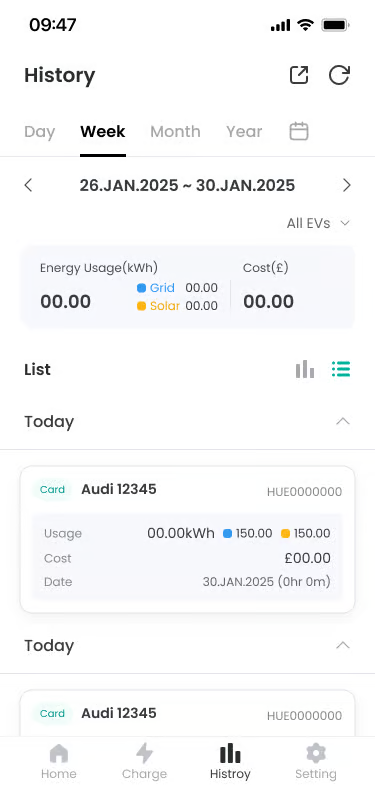
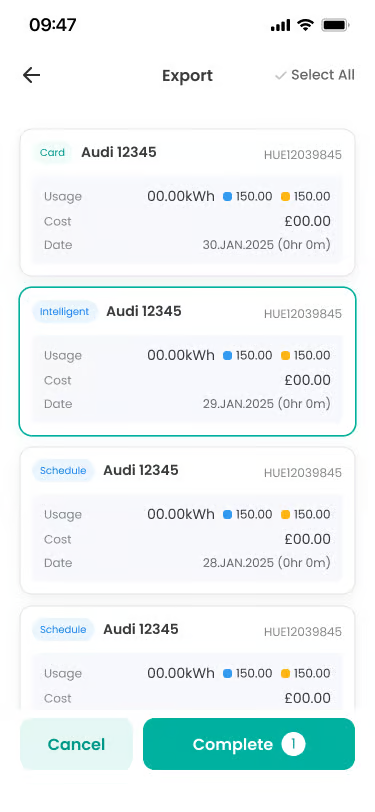
- Set Period
Location: Date area at top of screen
Functionality: Set the period you want to query. You can select the date directly or use preset buttons (1 month, 3 months, etc.).
Notes: Only charging sessions corresponding to the selected period are reflected in the list and statistics. - Filter
Location: Top right of screen or list header
Functionality: You can query by filtering history for specific vehicles.
Notes: When filter is applied, only data meeting conditions are reflected in the list and graph. - Summary Dashboard
Location: Below filter area
Functionality: Summarizes and shows Total Energy and Total Cost according to selection conditions.
Notes: Displayed data may differ depending on filter application conditions. - Charging History (Graph Type)
Location: Below summary dashboard
Functionality: You can visually check daily/monthly trends through bar graphs. Pressing a bar allows checking detailed information for that data.
Notes: If there is no data, the graph area may be empty or “No data” message may be displayed. - Charging History (List Type)
Location: When pressing list button next to statistics icon
Functionality: Provides detailed history of individual charging sessions in list form. You can check charger name, date, time, charge amount (kWh), cost information, etc.
Notes: Rate information may be provided as a set tariff or reference calculated value, and may differ from the actual billed amount. - Export Charging History
Location: Top export button
Functionality: You can generate queried charging history data in file form (Excel, PDF, etc.) to download directly or send via email.
Notes: It may take time depending on network status when exporting. - Reset Filter Button
Location: Next to top export button
Functionality: Initializes the set query filter.
FAQ #
- Q. I don’t see charging history.
A. Please check if the period you want to query is set correctly and if the filter conditions are not too restrictive. - Q. When is charging history not displayed?
A. When there is no charging history in the selected period, or charging session data is not yet reflected on the server. - Q. Statistical information is not provided.
A. Statistical data is updated 1 hour after charging completion. You can check charging session information in Charging History (List Type) before statistics are provided. - Q. Can I receive charging data in Excel?
A. Yes, you can download directly or receive data via email. - Q. Charging cost is displayed differently from actual.
A. Charging cost is calculated according to ‘Energy Tariff’ settings. Please check if the tariff information is correct in the settings menu.
