
Screen Overview #
Charger Lock feature is a security feature to prevent unauthorized use of the charger by others.
In locked state, the charger cannot be used, and charging is possible only after unlocking in the app.
Feature Details #
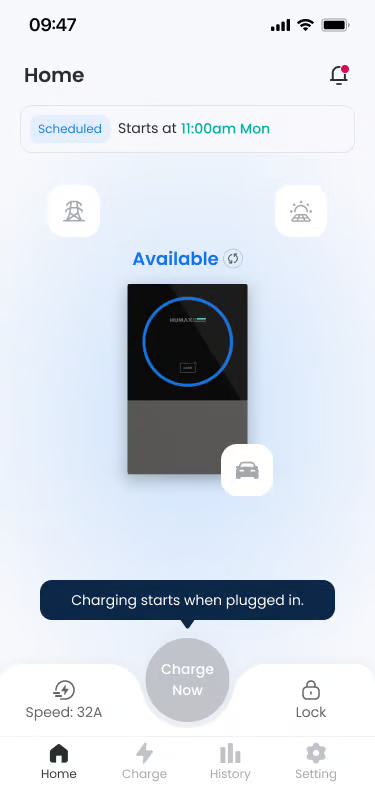
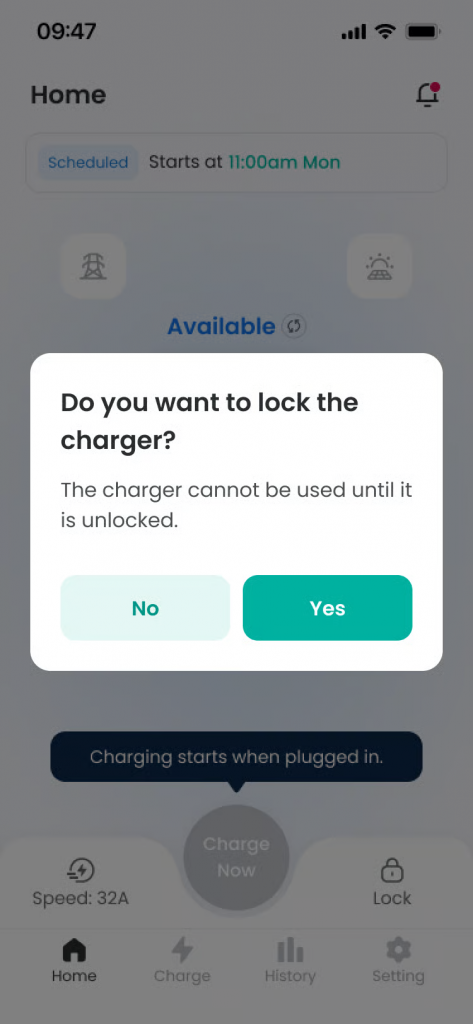
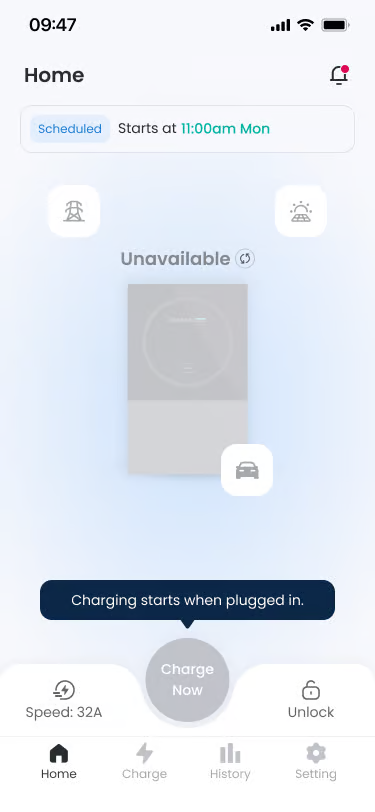
- Lock Button
Location: Right of Home screen bottom tab bar
Functionality: Switches the charger to locked state. Pressing the button displays a lock confirmation popup.
Notes: Activated only when the charger is in “Available” state. - Lock Confirmation Popup
Location: Center of screen
Functionality: Reconfirms intent to prevent locking due to user mistake. Pressing “Yes” executes locking. - Unlock Button
Location: Right of Home screen bottom tab bar
Functionality: Releases the locked charger to make it usable again.
Notes: Displayed when the charger is in “Unavailable” (locked) state.
Specific Scenarios #
- Charger Lock Setting
Process of locking the charger when not in use.
→ Tap the “Lock” button at the bottom of the Home screen.
→ Select “Yes” in the popup window.
→ Charger status changes to “Unavailable”, and the button changes to “Unlock”. - Charger Unlock
Process of unlocking to charge.
→ Tap the “Unlock” button at the bottom of the Home screen.
→ Select “Yes” in the popup window.
→ Charger status changes to “Available”, and it becomes a state where charging is possible.
FAQ #
- Q. Can I lock during charging?
A. No, lock feature cannot be used during charging. - Q. Does schedule charging work in locked state?
A. No, all charging features are restricted in locked state (“Unavailable”). You must unlock to charge at the reserved time.
