
Screen Overview #
After installation is complete, you can check the basic setting information (network and server connection status, firmware version, etc.) of the charger.
Please make sure to check if all settings are applied correctly before proceeding with Charging Test and Notify Owner steps.
Feature Details #
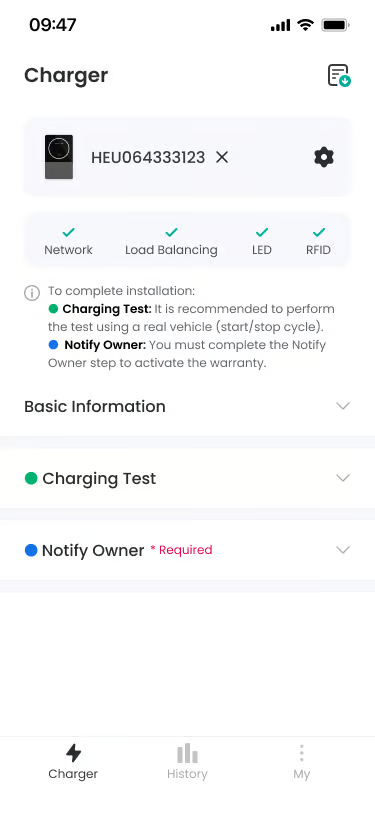
- Charger Information Card
Location: Top of screen
Functionality: Displays serial number (e.g., HEU00000000) of connected charger, and provides X button and settings (gear) button.
Notes: You can unpair from charger with X button, or move to charger detail settings screen with settings icon. - Completion Status Indication by Installation Step
Location: Below Charger Information Card
Functionality: Visually displays completion status of 4 installation steps (Network, Load Balancing, LED, RFID) with check marks.
Notes: If settings for each step are completed, it is displayed as a green check mark, and unset steps are displayed in grey. - Installation Guidance Text
Location: Below progress status indication
Functionality: Guides the next steps to complete installation. Explains two steps along with “To complete installation:” phrase.
Notes: Status indication icons (green dot, blue dot) are displayed together before each step. - Basic Information Section
Location: Below Guidance Text
Functionality: You can check basic information of the charger.
Notes: Please check basic information and then proceed with Charging Test and Notify Owner. - Charging Test Section
Location: Below Basic Information Section
Functionality: You can proceed with Charging Test/Recovery. Connect connector and press start/stop charging button to proceed with test.
Notes: Start/stop cycle test using actual vehicle is recommended. - Notify Owner Section
Location: Below Charging Test Section
Functionality: If you enter actual owner information and installation information and send email, installation completion and app download guidance email is delivered to owner.
Notes: Mandatory step for warranty activation. - Bottom Navigation Bar
Location: Bottom of screen
Functionality: Provides tab bar to move to main sections of the app.
Notes: There are three tabs: Charger, History, and My.
Additional Info #
- Charging Test Recommended: Charging test using actual vehicle (start/stop cycle) is recommended but optional.
- Notify Owner Mandatory: Mandatory step for warranty activation so must be completed.
- RSSI Signal Strength Standard: Classified into Excellent (-60dBm or higher), Good (-70dBm), Fair (-80dBm), Weak (-90dBm or lower).
- Server Connection: Remote control, monitoring, and OTA update are possible only when in Connected state.
- CT Current Measurement: You can check real-time current measurement values of CT sensors.
Specific Scenarios #
- Entering Installation Complete Screen
Automatically enters this screen after all installation steps up to RFID card registration are complete.
→ If configuration of all steps is complete, Network, Load Balancing, LED, RFID 4 steps are all displayed with green check marks. - Basic Information Section
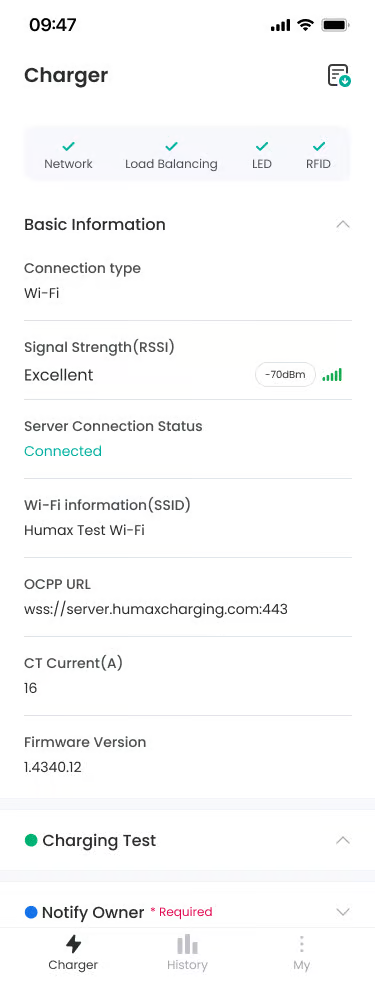
In Basic Information section, you can check detailed information of the charger.
→ Each item is displayed as “Loading…” while loading. - Connection type – Wi-Fi
Displayed when charger is connected via Wi-Fi.
→ “Wi-Fi” is displayed under “Connection type” label.
→ Signal Strength (RSSI) and Wi-Fi Information (SSID) items are displayed together. - Server Connection Status – Connected
Status where charger is normally connected to OCPP server.
→ “Connected” text is displayed in green.
→ Remote control, monitoring, and OTA update are all possible.
→ Communicating normally with server via OCPP protocol.
FAQ #
- Q. Signal Strength is displayed as “Weak”.
A. Reduce distance between charger and Wi-Fi router or remove obstacles. If possible, switching to LAN (Ethernet) connection is more stable. - Q. Can I skip Charging Test?
A. Yes, Charging Test is recommended but not mandatory. Testing with actual vehicle is better, but you can skip and proceed directly to Notify Owner. - Q. Do I need to notify the owner?
A. Yes, it is mandatory. This step must be completed to activate the charger warranty and for the owner to use it normally.
