
Screen Overview #
You can register (save) up to 2 RFID card information on the charger.
You can use the charger using registered RFID cards even without a network connection.
If using the charger in offline mode, please be sure to register the RFID card in advance.
Feature Details #
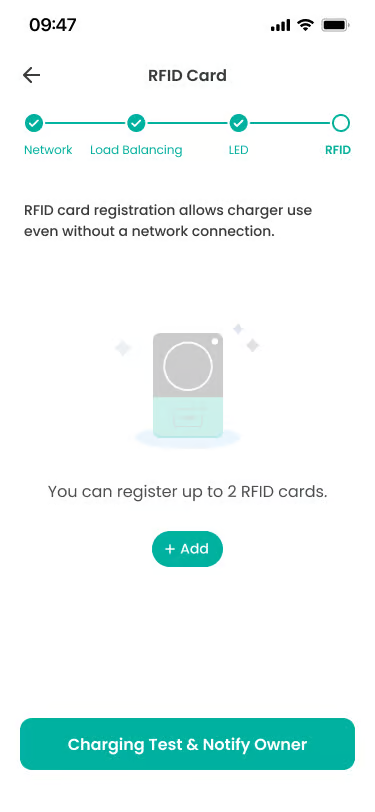
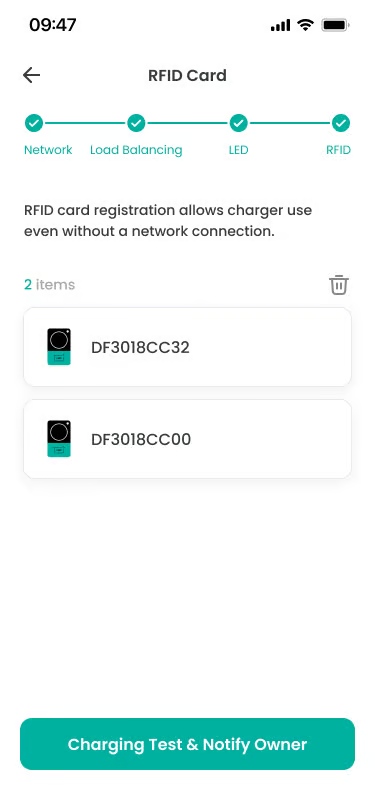
- Navigation Area
Location: Top of screen
Functionality: Displays installation progress steps. Consists of 4 steps: Network, Load Balancing, LED, RFID, and currently RFID step is active.
Notes: Not touchable. Current step is active, and previous steps are displayed as check marks. - RFID Card Registration Area
Location: Center of screen
Functionality: Displays and manages up to 2 RFID cards. You can register RFID cards by pressing +Add button.
Notes: Default is empty. When card is registered, card ID is displayed, and delete icon is provided. - + Add Button
Location: Center of screen
Functionality: When pressed, a modal to select “Scan With Camera” or “Enter Manually” options is displayed.
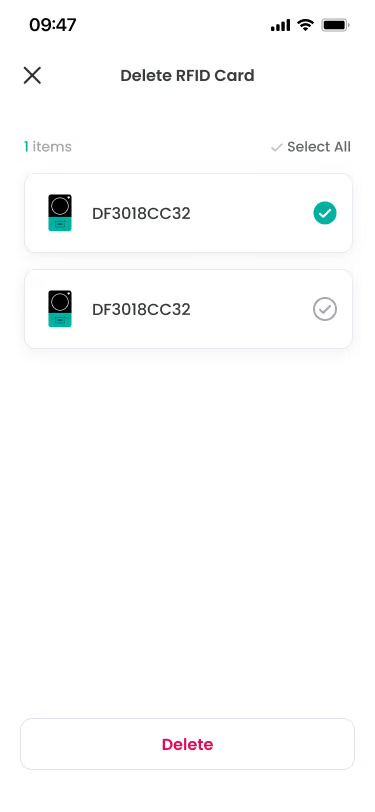
Notes: Button is provided only when less than 2 RFID cards are registered. - Delete RFID Card
Location: When entering delete mode
Functionality: You can select RFID cards to delete. “Delete RFID Card” title is displayed at the top of the screen.
Notes: Checkbox is displayed on the right of each card, and you can select cards to delete. - Charging Test & Notify Owner Button
Location: Bottom of screen
Functionality: This is the last step of the installation process. Press the button to check if installation is completed well and transfer ownership via “Notify Owner”.
Notes: Provided in always active state.
Additional Info #
- Maximum Registration Number: Up to 2 RFID cards can be registered to the charger.
- Barcode Scan: You can register quickly by scanning the barcode on the back of the RFID card with camera.
- Manual Input: If barcode is damaged or scanning is difficult, you can enter the card number manually.
Technical Details #
- Maximum Registration Number: Up to 2 RFID cards can be registered per charger.
- RFID Storage Location: RFID card information is stored dually in the charger’s non-volatile memory and server.
- User App Synchronization: RFID cards registered in Install App can also be checked in User App.
FAQ #
- Q. Can I charge without an RFID card?
A. Yes, you can remotely start and stop charging via User App while network configuration is completed on the charger. RFID cards are convenient when using the charger without network connection or wanting to control charging quickly without the app. - Q. Can I check in User App after registering RFID card?
A. Yes, RFID cards registered in Install App can be checked and managed in User App as well. - Q. Is network connection required when charging with RFID card?
A. No, network connection is not required when charging with RFID card. RFID card information is directly stored in the charger, so charging can be started and stopped even in offline state.
