
Screen Overview #
Scan and connect to nearby MX7 chargers using Bluetooth.
To proceed with charger installation, the Bluetooth function of the mobile phone must be activated.
Please work in a location close to the charger so that installation can proceed smoothly.
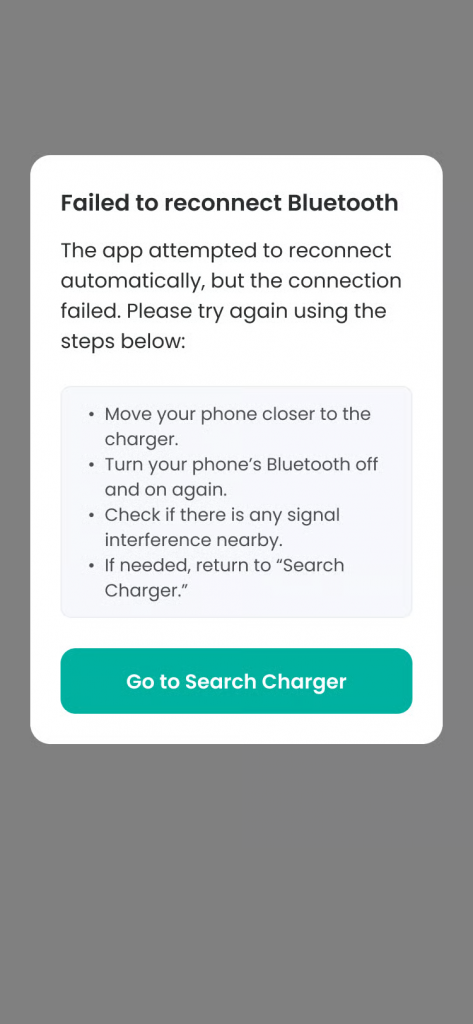
* If the Bluetooth connection is lost during the installation process, the app automatically attempts to reconnect up to 10 times. If all 10 attempts fail, it moves to the charger search screen, and you must proceed with the installation process again.
Feature Details #
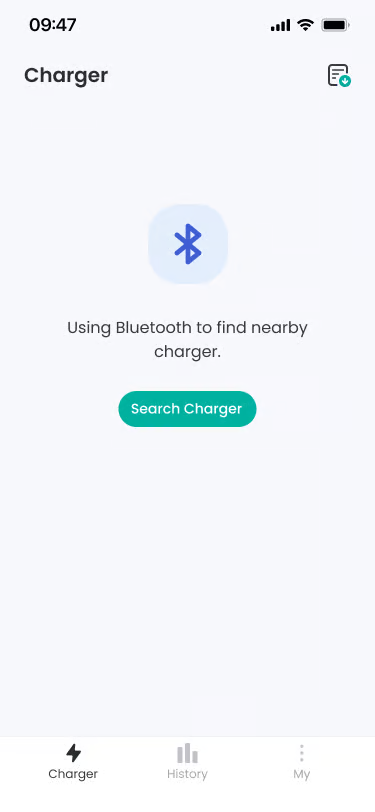
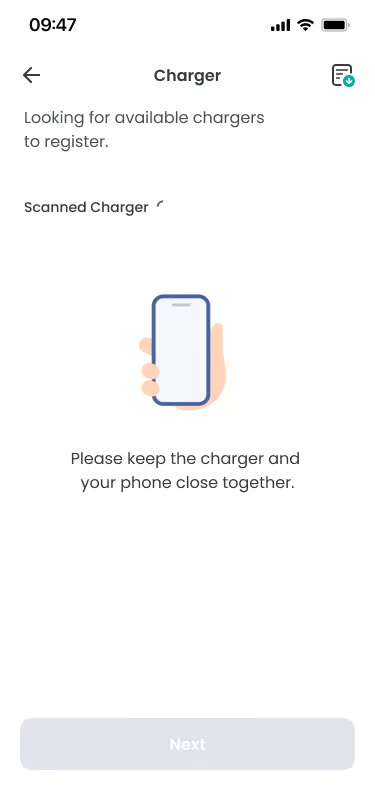
- Search Charger Button
Location: Center of screen
Functionality: Searches for registerable MX7 chargers nearby using Bluetooth. Only chargers managed by Humax are searched.
Notes: The button is activated when the app’s Bluetooth usage permission is allowed and the phone’s Bluetooth feature is on. - Charger List (Scanned Charger)
Location: Center of charger search screen
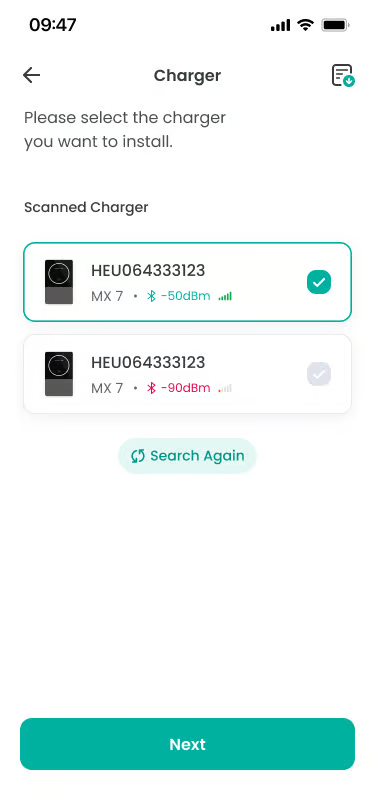
Functionality: Searched chargers are displayed as a list. Model name, serial number (e.g., HEU00000001), and Bluetooth signal strength (RSSI) are displayed for each item.
Notes: A loading screen is provided while searching for chargers, and if not searched, you can proceed with re-search by pressing the Search Again button. - Select Charger
Location: Center of charger search screen
Functionality: You can select the charger to proceed with installation. The selected item is activated with a check mark.
Notes: Only one charger can be selected and installed at a time. - Next Button
Location: Bottom of screen
Functionality: Press the button to proceed with the installation process of the selected charger.
Notes: The button is activated only when an installation target charger is selected. - Search Again Button
Location: Displayed upon search completion and non-discovery
Functionality: Restarts BLE scan to refresh the charger list.
Notes: Always available when the search process is complete. - BLE Reconnect Feature
Location: Top of screen
Functionality: Automatically proceeds with BLE reconnection with the charger 10 times when Bluetooth connection is lost.
Notes: If all BLE automatic reconnections fail, failure guidance is provided, and you can return to the charger search screen to proceed with the installation process again.
Additional Info #
- Bluetooth Permission: Bluetooth permission is required when running the app. If there is no permission, “Bluetooth permission is required” notification is displayed.
- Bluetooth Activation: If Bluetooth is off, “Please turn on Bluetooth” message is displayed, and tapping it guides to the settings screen.
- Offline Restriction: Charger search and installation process cannot be proceeded when the charger is in offline state (power unconnected).
- BLE Reconnection: If BLE connection is lost during the installation process, a reconnection screen is automatically displayed, and you can retry with the Reconnect button.
- Reconnection Distance: If BLE connection drops frequently, it is recommended to try right in front of the charger (within 1~2m).
- Retry Limit: If reconnection fails more than 10 times, you can start over from the beginning by pressing the “Go to Search Charger” button.
- Maintain Installation Progress Status: Even if BLE connection is lost, the already completed installation steps are maintained, and it continues from the interrupted point after reconnection.
Specific Scenarios #
- Unsupported Charger
Displayed when a charger not managed by Humax is searched.
→ Chargers that do not match based on manufacturer information are automatically filtered.
→ If the user selects an unsupported charger, “This charger is not supported” message is displayed.
→ The user presses the “OK” button to return to the search screen again. - Charger Not Found
Displayed when BLE scan is complete but no selectable chargers are found.
→ An empty list is displayed with “No chargers detected nearby.” message.
→ Possible causes: Charger power off, distance too far, paired to another user.
→ Re-search is possible by pressing “Search Again” button. - Enter PIN Code
When a charger is selected, a screen to enter the charger’s PIN code information is provided to verify the owner.
→ Screen to enter PIN code (4-digit number) is displayed.
→ PIN code can be checked on charger packaging box or installation manual.
→ If incorrect PIN is entered, “Incorrect PIN code” error is displayed.
→ If it is a charger already registered to another user, “This charger is already registered.” error is displayed upon PIN input.
→ Customer center connection button is provided upon PIN code input failure.
→ Moves to network setting screen upon correct PIN input.
Technical Details #
- iOS may have cases where connection is temporarily lost as BLE communication is restricted when app switches to background due to security policy.
- When charger is not searched, check if charger is already saved in ‘Connected Devices’ or ‘My Devices’ in OS Bluetooth setting screen and release it.
- Filters and displays only chargers managed by Humax.
- Signal strength (RSSI) is updated in real-time to help identify the nearest charger.
