
Screen Overview #
You can check the currently installed app version and update to the latest version to always maintain optimal service environment.
Feature Details #
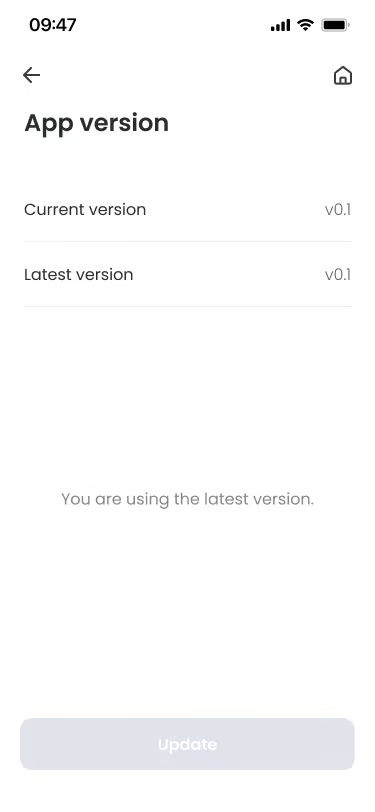
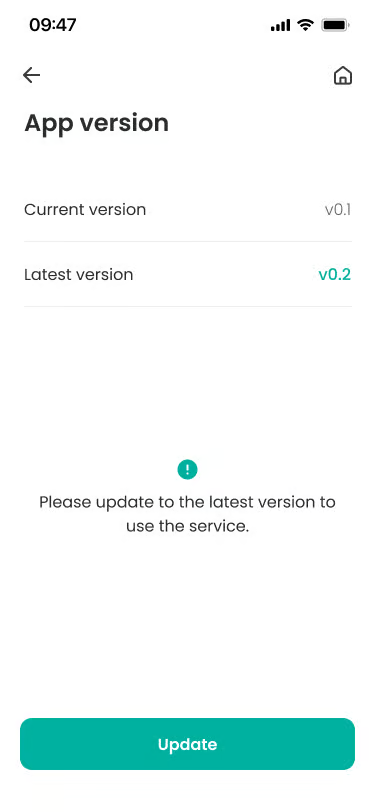
- Current Version
Location: Top of screen
Functionality: Displays app version (e.g., v3.15) information currently installed on user’s device. - Latest Version
Location: Below current version information
Functionality: Displays latest version distributed on App Store/Play Store.
Notes: If update is needed, version information may be displayed in emphasized color (e.g., turquoise). - Version Status Guidance
Location: Center of screen
Functionality: Guides whether update is needed for current app with text.
Notes: If update is needed, “Please update to the latest version to use the service.” is displayed. - Update Button
Location: Bottom of screen
Notes: If currently installed app is the latest version, button is provided in deactivated state, and if update is needed, button is activated. - Update Notification Popup
Location: When running app
Functionality: Guides app update through popup when mandatory app update is required due to important update or when new features are added. Provided in two types: Force Update and Optional Update.
Notes: For Force Update, you can use the app only after proceeding with update.
Specific Scenarios #
- Force Update
Popup displayed when update is mandatory to use the app.
→ Condition: Occurs when below minimum supported version or when app usage is impossible without update.
→ Action: There is no close button, and only “Update” button is provided to force update. - Optional Update
Popup displayed when new features are added but usage is possible with current version.
→ Condition: Occurs when lower than latest version but not mandatory update.
→ Action: “Later” button is provided besides “Update” button, so you can postpone update and continue using the app.
→ Update is recommended for optimized user experience.
