
Screen Overview #
This is a hub screen where you can proceed with settings and management for the app, charger, and account. You can check all settings required for app and charger usage, from profile management to charger, RFID card, tariff, notification, and language settings.
Feature Details #
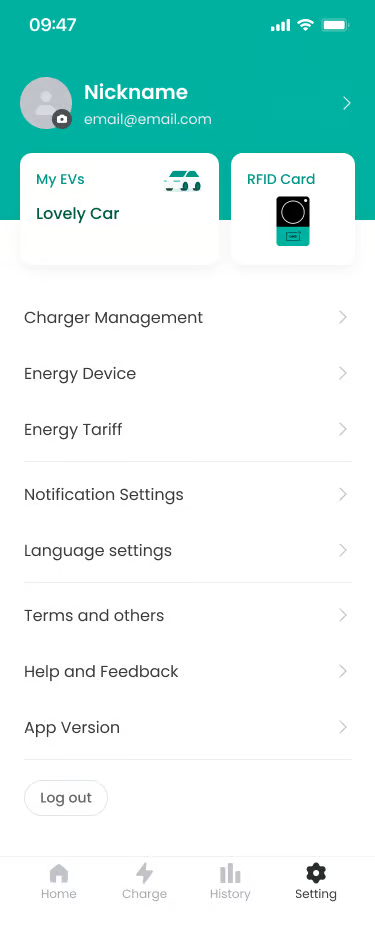
- Account Area
Location: Top of screen
Functionality: User’s profile image, nickname, and email are displayed. You can move to detailed profile settings by tapping the area.
Notes: Log out button is located at the bottom of the screen. - My EV & RFID Card
Location: Below Account Area
Functionality: Shortcut menu showing registered electric vehicle (My EV) information and RFID registration information.
Notes: You can move to electric vehicle and RFID card management screen by pressing the menu button. - Charger Management
Location: Below My EV & RFID Card menu
Functionality: Menu to check registered charger information and manage setting information.
Notes: Tapping moves to charger management screen. - Energy Device
Location: Below Charger Management menu
Functionality: You can register and manage Energy Monitoring Devices installed in the home.
Notes: Selectable Energy Monitoring Device list is provided differently depending on service country. If Energy Monitoring Device is not installed, use of load balancing feature may be restricted. - Energy Tariff
Location: Below Energy Device menu
Functionality: Manage charging rates and energy-related cost settings.
Notes: You can set tariffs by region and provider. - Notification Settings
Location: Below Energy Tariff menu
Functionality: You can set whether to receive push notifications by notification type. - Language Settings
Location: Below Notification Settings menu
Functionality: Changes the display language of the app.
Notes: Currently selected language (e.g., English) is displayed on the right. - Terms and Others
Location: Below Service Country menu
Functionality: You can check legal notices such as service terms of use and privacy policy - Help and Feedback
Location: Below Terms and Others menu
Functionality: Provides FAQ and 1:1 inquiry features - App Version
Location: Last menu
Functionality: You can check the currently installed app version and the latest app version information. If the current version is lower than the latest version, you can move to the app store to proceed with the update.
Notes: If app update (recommended) is needed, update required guidance information is provided.
FAQ #
- Q. I want to turn off notifications.
A. You can set whether to receive push notifications in ‘Notification Settings’ menu. - Q. How do I delete my profile image?
A. If you tap the profile image area, you can change or delete the image. Upon image deletion, it is initialized to the default provided image.
