
Screen Overview #
In the Charger Management menu, you can manage major settings required for charger operation, such as checking basic information of registered chargers, charging operation settings, network management, firmware updates, and deleting chargers.
※ Some setting items may not be provided depending on the charger model, country, and service policy.
Feature Details #
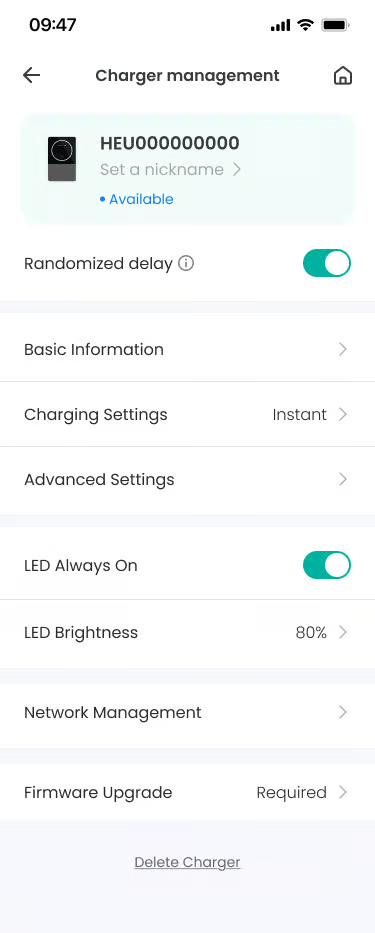
- Charger Information
Location: Top of menu
Functionality: You can check the charger information registered to the user account (Charger SN, Charger Nickname, Charger Status, etc.).
Notes: Some management features may be restricted if the charger is offline. - Charger Nickname
Location: Top of menu
Functionality: Tap the nickname area below the Charger SN information to modify the nickname.
Notes: Charger nickname change is reflected immediately upon saving, regardless of charger status. - Randomized Delay
Location: Bottom of charger information card
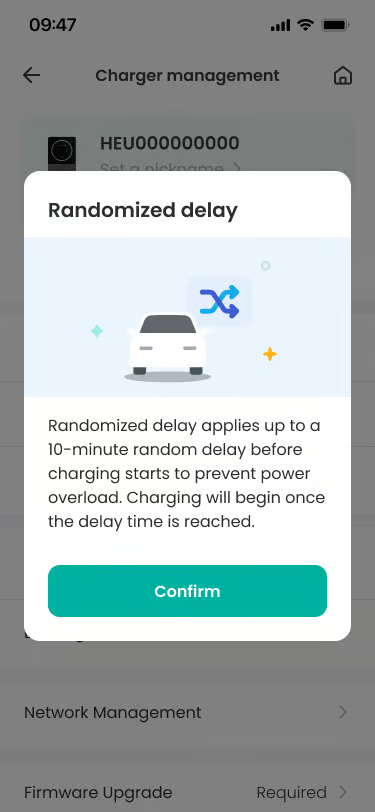
Functionality: This is a feature where a random delay time of up to 10 minutes is applied at the start of charging for power grid stabilization. (ON: Charging starts after a certain random delay when charging begins. / OFF: Charging starts immediately.)
Notes: Default activation may differ depending on country and service policy. (UK regulation applied) - Basic Information
Location: Below Randomized Delay menu
Functionality:You can check basic information of the charger such as serial number (S/N), model name, registration date, installation date, installation address, and firmware version.
Notes: Installation address cannot be modified directly in the app and is processed through the customer center. - Charging Settings
Location: Below Basic Information menu
Functionality: You can check and set the currently configured charging mode (Intelligent, Schedule, Instant).
Notes: Some features may require Energy Monitoring Device or Tariff settings. - Advanced Settings
Location: Below Charging Settings menu
Functionality: You can manage advanced charging setting features such as load balancing function. - LED Always On
Location: Below Advanced Settings menu
Functionality: Sets whether the charger LED indicator is always on. - LED Brightness
Location: Below LED Always On menu
Functionality: Adjusts the charger LED brightness. - Network Management
Location: Below LED Brightness menu
Functionality: Checks the network connection status of the charger such as Wi-Fi and changes settings.
Notes: If the network is not connected, charging control via app is not possible, and some app features and status information may be restricted. - Firmware Upgrade
Location: Below Network Management menu
Functionality: Checks the latest firmware version and proceeds with the update. (Required/Recommended update indication)
Notes: If a firmware update is required, it is provided as Required guidance information. - Delete Charger
Location: Bottom of screen
Functionality: Unregisters the charger from the current account and initializes the device (Factory Reset).
Notes: To use the charger again after deletion, you must proceed with the charger registration process again.
Technical Details #
- Charger status and setting information are managed in linkage with the server.
- Information update may be delayed depending on the network connection status.
- Firmware version information is displayed based on the current status applied to the charger.
FAQ #
- Q. Is firmware update mandatory?
A. If displayed as Required, update is recommended for stable use. - Q. What happens if I delete the charger?
A. The connection between the account and the charger is released, and charging history and settings can no longer be checked in the app.
