
Screen Overview #
- Select the Humax Server (or another service platform) to which the charger will be connected, then proceed with the network settings.
- The charger can be operated online via either a Wi-Fi or LAN (Ethernet) connection.
- Depending on the charger’s firmware version, applying the network settings may cause the charger to restart automatically.
Feature Details #
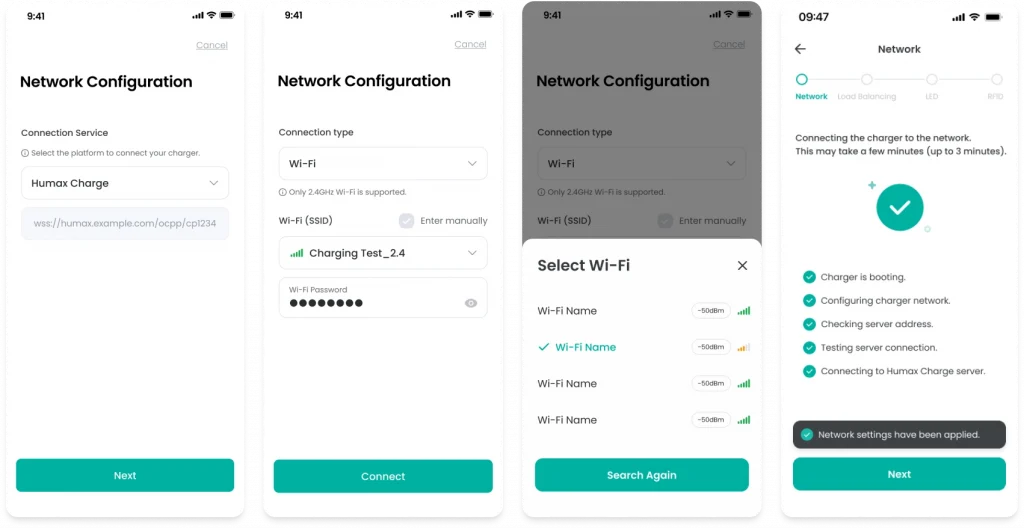
- Connection Service Dropdown
– Location: Top of the screen
– Function: Allows selection of the platform to which the charger will connect. The default is “Humax Charge”, and selecting it opens a platform selection modal.
– Notes: If “Enter Manually” is selected, a field for directly entering the OCPP server URL becomes available. - OCPP URL Input Field
– Location: Below the Connection Service dropdown
– Function: When “Enter Manually” is selected from the Connection Service dropdown, this field allows manual entry and editing of the OCPP WebSocket address.
– Notes: The OCPP URL provided when selecting a platform from the Connection Service dropdown cannot be edited. - Connection Type
– Location: Top of the screen
– Function: Allows selection of the connection method, either Wi-Fi or LAN (Ethernet). A stable option should be chosen based on the installation environment.
– Notes: When Wi-Fi is selected, SSID search and input fields are displayed. When LAN is selected, no additional configuration is required. - Wi-Fi Selection Dropdown
– Location: Displayed when ‘Wi-Fi’ is selected as the connection type
– Function: Scans for nearby 2.4GHz Wi-Fi networks and allows selection from the list, or manual entry of a hidden network (SSID).
– Notes: When an SSID is selected, it is shown with a signal strength icon, and a password input field appears below. - Wi-Fi Password Input
– Location: Displayed after selecting a Wi-Fi SSID
– Function: Allows entry of the password for the selected Wi-Fi network. Includes options to show/hide the password and clear all input.
– Notes: When an SSID is selected, it is displayed with a signal strength icon, and the password field appears below. - Enter Manually
– Location: Within the Wi-Fi section
– Function: When the checkbox is enabled, the ‘Wi-Fi Name’ and ‘Password’ input fields are displayed instead of the Wi-Fi selection dropdown, allowing manual input.
– Notes: Depending on the charger firmware version, only the Enter Manually option may be available. - Connect Button
– Location: Bottom of the screen
– Function: Applies the configured server and network settings to the charger. The charger will then automatically proceed with network configuration and server connection.
– Notes: Enabled only when all required information has been entered.
Additional Info #
- Wi-Fi Limitation: Only 2.4GHz Wi-Fi is supported. 5GHz-only networks are not supported.
- Settings Storage: The configured network settings are stored on the charger.
Specific Scenarios #
- Unable to Find Wi-Fi Networks
Displayed when the Wi-Fi scan is complete but no networks are found.
– A “No available Wi-Fi networks found.” message is shown along with an empty list.
– You can press the “Search Again” button to rescan.
– Ensure the charger is within range of a 2.4GHz Wi-Fi signal. - Manual Entry
Used when connecting to a Wi-Fi network not listed or when using a custom server (OCPP). – Wi-Fi: Select the “Enter manually” checkbox and enter the SSID and password directly.
– Service: Select “Enter Manually” and enter the OCPP server URL starting with “ws://” or “wss://”.
Technical Details #
- Configuration via BLE: All network settings are encrypted and transmitted to the charger via a BLE connection.
- Wi-Fi Scan Frequency: The charger scans for nearby Wi-Fi networks when the Wi-Fi dropdown is opened, and rescans upon user request.
FAQ #
- Q. The Wi-Fi password is correct, but the connection fails.
1. Check whether the router supports the 2.4GHz band.
2. Ensure the correct SSID has been selected.
3. Try restarting the router.
4. Reduce the distance between the charger and the router. - Q. The charger restarts after applying network settings. Is this normal?
– Yes, depending on the firmware version, the charger may restart to apply the network configuration. The restart typically takes about 1–2 minutes. - Q. Where can I find the Connection Service URL?
– The default OCPP server URL is set automatically.
– If using a custom server, you can obtain the URL from your service provider and enter it manually. - Q. Can I change previously configured network settings?
– Yes. When you reconnect to the charger via the app, the existing settings will be displayed. After making changes, press the “Connect” button to proceed with the network connection.
