
Screen Overview #
Register the charger installed at home using the app. In the initial state where the charger is not registered, you can start the registration process from the home screen. When registering a charger, it scans for nearby MX7 chargers using Bluetooth.
To proceed with charger installation, the Bluetooth feature of the mobile phone must be activated.
Please proceed in a location close to the charger so that charger registration can proceed smoothly.
Feature Details #
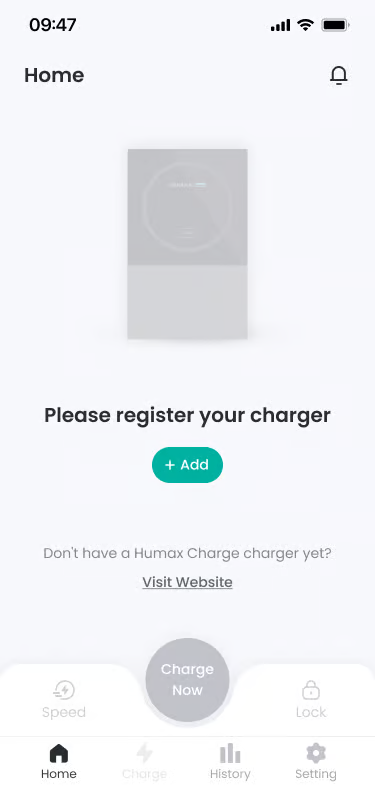
- Main Home Screen (Charger Unregistered)
Location: Home Screen
Functionality: If there is a registered charger, “+ Add” button is displayed at the top of charger image.
Notes: Pressing “+Add” button moves to charger search screen via Bluetooth. - Charger Search (Bluetooth)
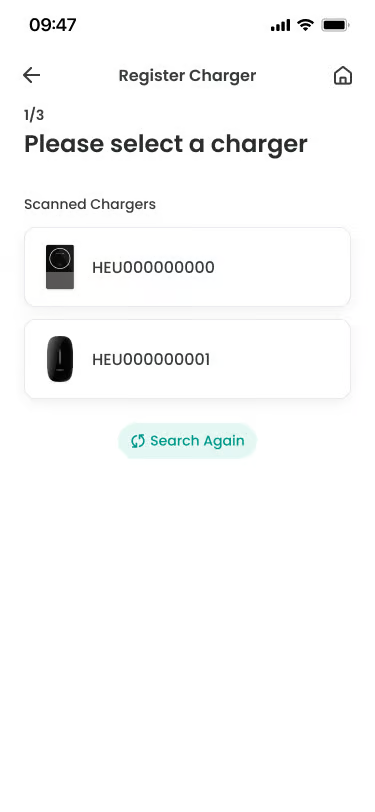
Location: First step of Charger Registration
Functionality: Searches for registerable MX7 chargers nearby using Bluetooth. Only chargers managed by Humax are searched.
Notes: The button is activated when the app’s Bluetooth usage permission is allowed and the phone’s Bluetooth feature is on. - Charger List
Location: Search Result List
Functionality: Searched chargers are displayed as a list. Model name and serial number (e.g., HEU00000001) are displayed for each item.
Notes: If charger is not searched, you can proceed with re-search by pressing Search Again button. - Enter PIN Code
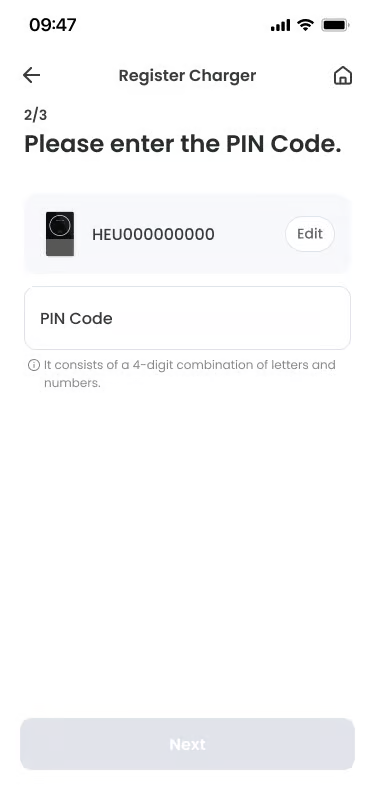
Location: After selecting charger
Functionality: When a charger is selected, a screen to enter the charger’s PIN code information is provided to verify the owner.
Notes: PIN code can be checked on charger packaging box or installation manual. - Enter Charger Installation Address
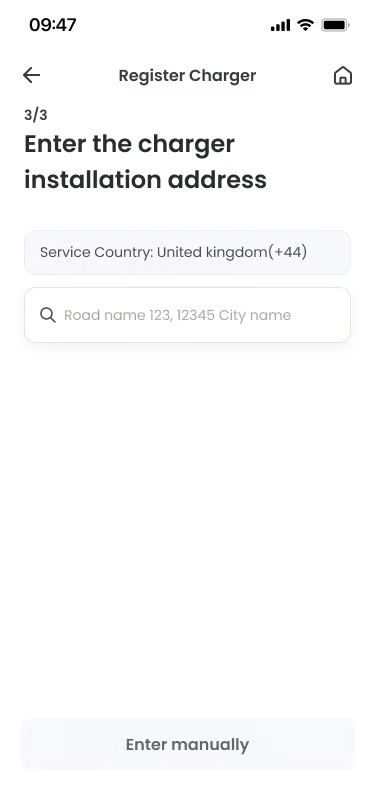
Location: After PIN code verification
Functionality: You can search for or directly enter the address information where the charger is installed. Charger installation address information is used as product warranty confirmation information.
Notes: Initial registered address information cannot be arbitrarily changed by the user. If installation address changes during service use, change is possible through customer center. - Registration Complete
Location: Final step after address input
Functionality: Guidance screen where you can reconfirm registered charger information (serial number, model name, etc.) is provided.
Notes: If network information is not configured on the charger, a button to move to network setting screen is provided.
Specific Scenarios #
- Bluetooth Permission Setting
You must allow permission for the app to use Bluetooth.
→ If permission request popup appears, please allow permission.
→ Change Bluetooth access permission to “Allow” in app settings and try again. - Enter PIN Code
When a charger is selected, a screen to enter the charger’s PIN code information is provided to verify the owner.
→ Screen to enter PIN code (4-digit number) is displayed.
→ PIN code can be checked on charger packaging box or installation manual.
→ If incorrect PIN is entered, “Incorrect PIN code” error is displayed.
→ If it is a charger already registered to another user, “This charger is already registered.” error is displayed upon PIN input.
→ Customer center connection button is provided upon PIN code input failure.
→ If you lost the PIN code or error persists, please contact customer center.
→ Moves to network setting screen upon correct PIN input. - Charger in Network Unset Status
Procedure when charger registration is complete but network (Wi-Fi) is not set.
→ Button to move to network configuration screen and Skip button are provided on charger registration completion screen.
→ Skip: You can skip network settings and move to home screen. (Remote control via app is not possible when network is not connected.)
Technical Details #
- iOS may have cases where connection is temporarily lost as BLE communication is restricted when app switches to background due to security policy.
- When charger is not searched, check if charger is already saved in ‘Connected Devices’ or ‘My Devices’ in OS Bluetooth setting screen and release it.
- Filters and displays only chargers managed by Humax.
FAQ #
- Q. Charger is not searched. What should I do?
A. 1) Check if charger power is on. 2) Place charger and phone close within 5m. 3) Check if Bluetooth is activated. 4) Press “Search Again” button to search again. - Q. Pairing fails.
A. Place charger and phone close within 5m and try again. If it fails multiple times, turn Bluetooth off and on again.
